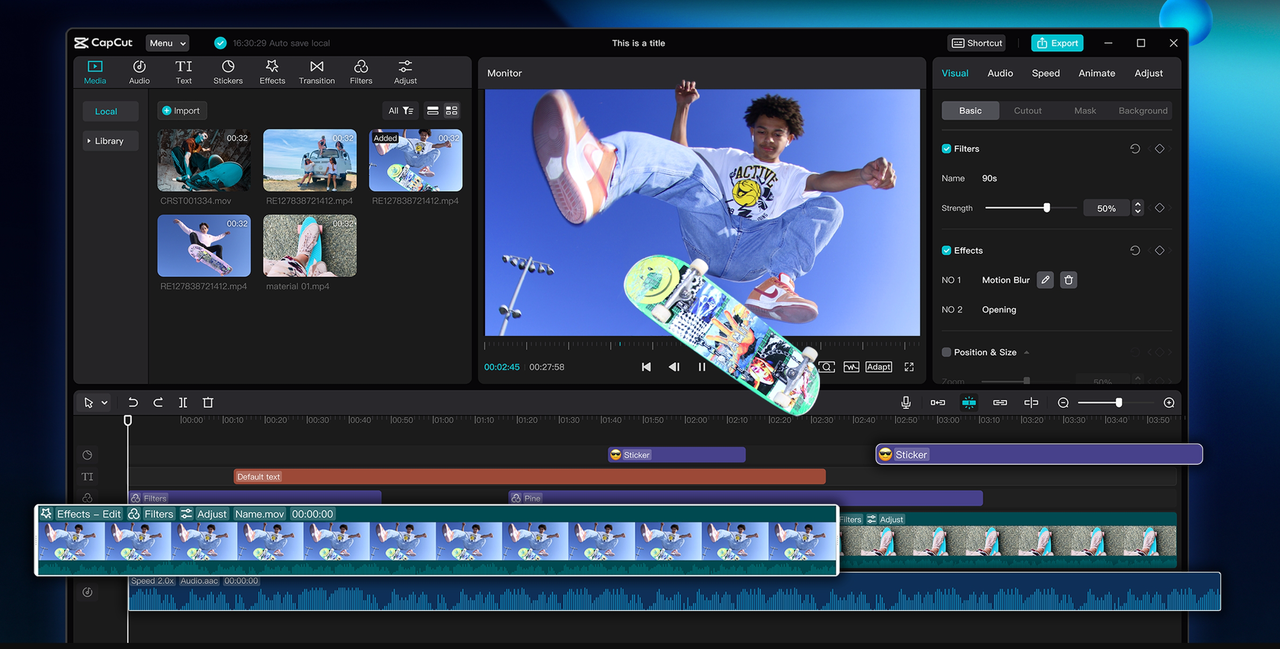
Pet videos are entertaining to view and share, but it is difficult to make them stand out. Most videos look the same, so it takes more than an adorable video to get attention.
That is where tools such as CapCut Desktop Video Editor shine. With Mask and Curves, you can take plain videos and make them amazing.
These features greatly assist in bringing out movement, altering lighting, and defining your scene. When paired with smart tools like the AI voice generator, your videos can tell a richer story and hold attention longer. In this guide, you’ll learn how to use Mask and Curves step by step.
Why Use Masks and Curves for Pet Videos?
Pet videos are all about revealing what’s special about your pet. The Mask tool in CapCut Desktop Video Editor assists you in that by keeping the center of attention where it should be, on your pet.
You can conceal distracting backgrounds and make viewers focus on what you want. Experiment with shapes such as circles, rectangles, or even split screens to make your videos look more fashionable.
Curves tool allows you to control the speed flow of your clip. You can slow down your pet’s jumps, create smooth ramps for playful runs, or add energy with quick bursts. Whether you need cinematic slow motion or sharp action cuts, Curves offers you control without making it difficult.
Even if you’re new to editing, these tools give your videos a clean and sharp look. For more detail and better quality, you can also use other smart tools like the AI video upscaler, along with Mask and Curves.
While CapCut PC offers many free options, some advanced masks or color controls might need a paid plan.
Top Advantages of CapCut Desktop Video Editor’s Mask and Curves Tools for Cat Videos
- Accuracy Editing: The Mask tool allows you to edit just where you want to. You can make your cat stand out without changing the background.
- Versatility: Choose from shapes such as circles and rectangles, or utilize the custom pen tool. Utilize curves for adjusting colors, light, and contrast.
- Motion Tracking: With keyframes, your mask will travel along with your pet. This maintains focus on them even as they jump or run.
- Seamless Integration: You can combine Mask and Curves with filters, text, and effects. This allows you to convey a clear and entertaining story in your video.
- No Watermarks in Paid Plans: Paid add-ons enable you to export watermark-free videos. This makes your content presentation better.
- Time Saving: You can edit faster and reuse presets. This is convenient for pet vloggers and regular postwriters.
- Cross-Platform Sharing: Easily share your videos from CapCut PC to social media or personal websites.
- Add Narration with Text to Speech: Utilize the text to speech AI function to include voiceovers or captions. This provides your pet’s tale with a unique voice.
Try these features in CapCut Desktop Video Editor to give your pet videos a whole new look and feel.
Steps to Use Masks and Curves in CapCut Desktop Video Editor
Step 1: Download and Install CapCut Desktop Video Editor
Visit the official website of CapCut and download CapCut Desktop Video Editor. Once downloaded, install it on your Windows or Mac computer to get started.
To access Mask and Curves, ensure you are using the desktop version. The PC version gives you all the professional editing tools in one place.

Step 2: Import Your Pet Video
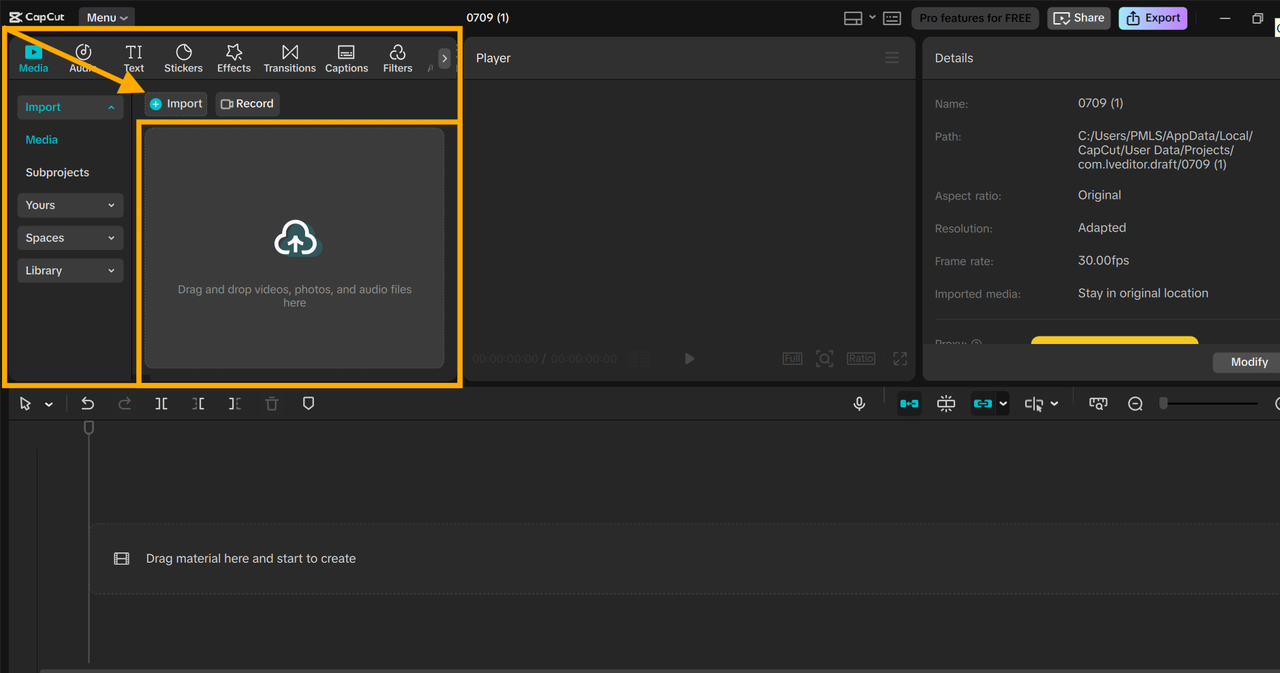
Open CapCut PC and start a new project. Click the “Import” button to add your pet video and photos. Drag your media to the right timeline in the correct order. This keeps your editing flowing and free of clutter from the beginning.
Step 3: Highlight Your Pet Using the Mask Tool
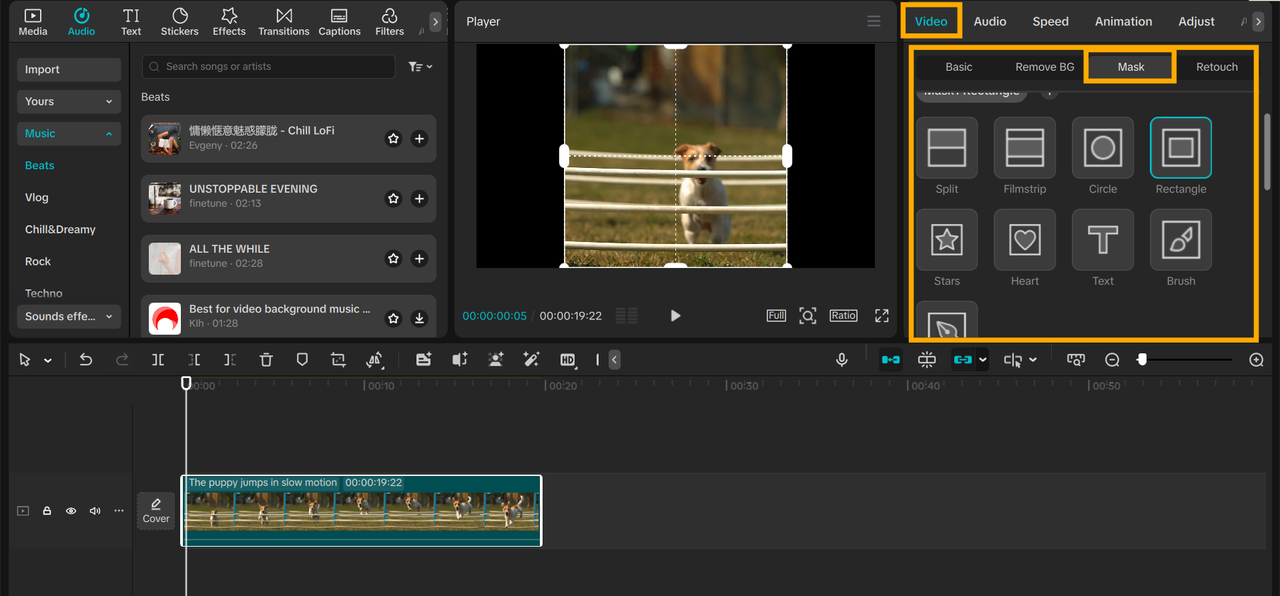
Double-click the clip you wish to edit. After that, the “video” tab opens. Choose the “Mask” tool to create and define your pet’s shape and highlight it. You can adjust the size, change the outline, add feathering, and set keyframes for movement.
Step 4: Adjust Motion and Flow
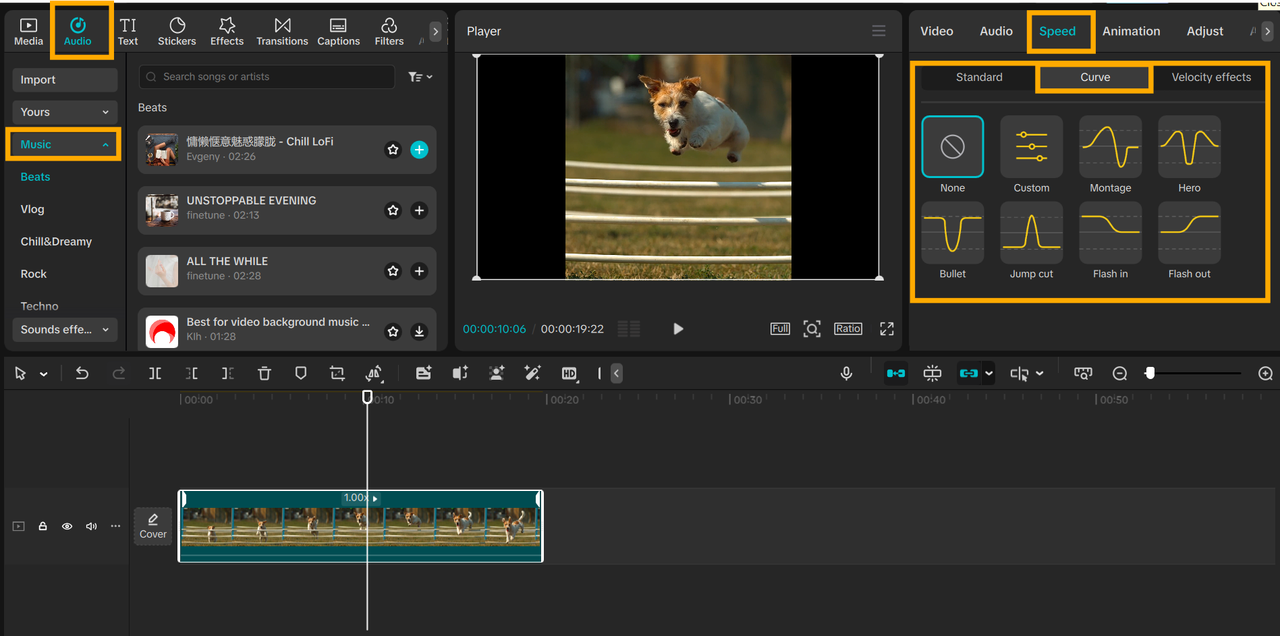
Next, open the Speed tab and select the “Curves” panel to adjust your clip’s motion and pacing. This adds a dynamic feel to your video and enhances its visual rhythm.
Once done, preview your edit and make any needed adjustments. Finally, insert background music, text, or voiceover to match your video’s mood and style.
Step 5: Export and Share
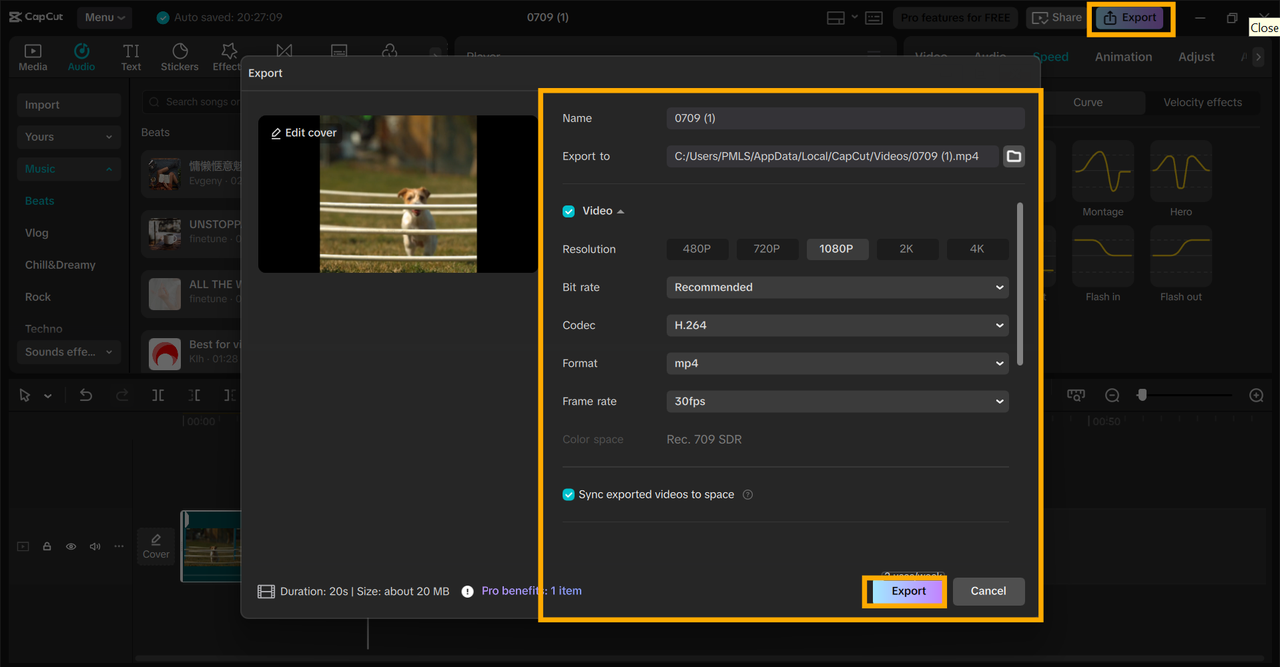
Set the size and quality of the video you prefer. Click “Export” to save your video to your computer. You can then share it on social media or send it to friends by email.
Conclusion
Applying the Mask and Curves functions in CapCut Desktop Video Editor renders pet videos clear, crisp, and lively.
These functions enable you to zoom in on your pet, balance the colors, and give every clip a clean finish. Even without editing experience, you are still able to make your videos crisp and professionally made.
If you post pet content on social media, these features are a good starting point. Download CapCut PC directly from the official website to get started. Note that some of the advanced features might require a paid plan.
Give your pet videos a fresh, stylish look today with CapCut PC!